Release of 22 July 2026
Hyperfox now opens in the new layout for everyone. This release also adds undo on the validation screen and a toolbar on the PDF viewer, and fixes the lines table on long orders.
Highlights
The new layout for everyone
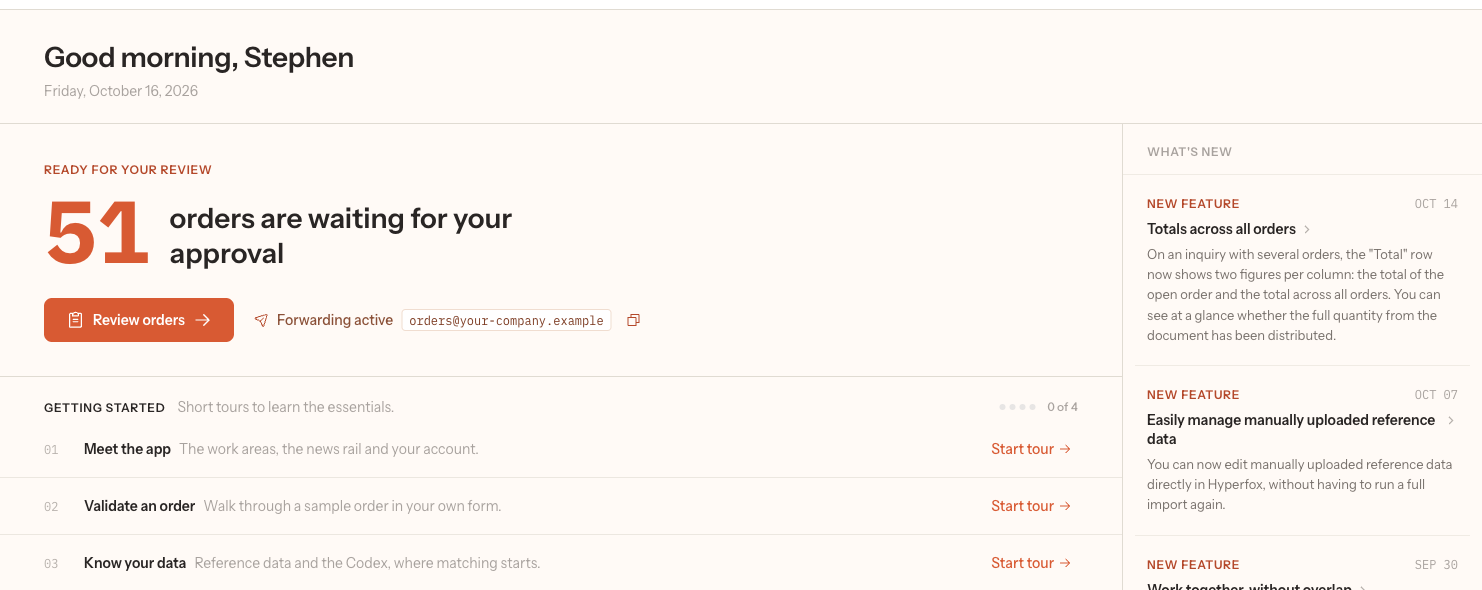
The new layout, with its denser lists and the command palette, is now the layout every user gets. Why: you no longer have to switch the new layout on yourself to work with the screens built for it. How it works: the first time you open Hyperfox in a browser after midnight on 17 July, it opens in the new layout, and you can go back to the previous layout by switching off New design in the Account menu; see Get started with Hyperfox › Your account.
Undo on the validation screen

In the new layout, the validation screen remembers each change you make to an inquiry until you save it. Why: a wrong edit, a deleted line or a deleted order no longer has to be typed in again. How it works: press ⌘ Z (Ctrl Z on Windows) to undo the last change and ⌘ ⇧ Z (Ctrl Shift Z on Windows) to redo it, and the sub-header says what ⌘ Z would undo; see The validation screen › Undo.
New
- On your first visit to the new layout, a short tour shows the command palette, the keyboard shortcuts and What's new on the Dashboard. Start it again with "Take the tour" in the command palette; see Tours.
- The PDF viewer on the validation screen has a toolbar with Previous page, Next page, a page number you can type, Zoom out, Zoom in and Reset zoom to 100%. Rotate clockwise turns a scan that arrived sideways a quarter turn; see The validation screen › Source pane.
- In the new layout, routes have their own item under Admin settings: Routes, where you choose the channel and manage its routes without opening the channel; see How the AI reads an order › Choose a route.
- In the new layout, the Dropzone has its own item under Admin settings, and the S3 connection it uses is shown as Dropzone on the Integrations page; see Integrations › Dropzone.
- In the new layout, an import profile can run Hourly or Every X hours. Under Schedule, None means the profile only runs when you start it; see Import Profiles.
Changed
- In the new layout, the e-mail channel is called Forward E-mail; see Channels › Forward E-mail.
- In the new layout, a date filter on a list is a date range: pick a start and an end date, or clear one end to leave it open. The active filter shows the range itself; see Order lists and the dashboard › Filters, sorting and page size.
- In the new layout, the Insights period on the Dashboard can again be a Custom range that you pick on a calendar; see Order lists and the dashboard › The dashboard.
- In the new layout, Set unit on selected lines opens a list you can search, which stays the same size however many units your environment has; see Fix order lines: item, quantity and unit › Change several lines at once.
- In the new layout, leaving a page with unsaved changes through the command palette, or closing the browser tab, asks first, so your changes are not lost without a warning; see The validation screen › Dialogs.
Fixed
- In the new layout, fixing the field that blocks an order enables Validate at once, without saving first, and the disabled Validate button no longer turns white when you point at it; see Save or Validate is blocked, or the order is read-only › Validate is disabled: "Resolve all errors to validate".
- In the new layout, the Total row under the lines shows the first three unit totals and puts the others behind a "more" button, instead of covering half the lines. Scrolling a long order no longer leaves empty stretches, and the focused cell no longer hides behind the totals or the column headers; see Fix order lines: item, quantity and unit › Check the totals.
- In the new layout, the lines show the name of the matched item again instead of only its code, and a long product name wraps onto a second line instead of being cut off; see The validation screen › Lines.
- In the new layout, on an order with more than one lines table,
Tabwalks through each table once and then moves to its add-line button; see Keyboard shortcuts › Lines grid. - A scanned PDF shows all its printed text in the viewer again, and an attachment that arrives with an unusual file type opens in the right viewer based on its file extension; see The validation screen › Source pane.
⌘-click (Ctrl-click on Windows) or a middle click on a row in a list opens the record in a new tab again. The link from a Codex entry to its order opens the archived inquiry on the right order; see Order lists and the dashboard › Filters, sorting and page size.- In a split inquiry, lines you move to a new order show their unit conversion before you save; see Work with a split inquiry › Move or copy lines to another order.
- Saving a Microsoft 365 channel after you switched it to Paused no longer fails; see Channels › Every channel.
- The API Clients page shows its texts in Dutch and French; see Create an API client › Create the client.