Release of 12 August 2026
This release lets you reuse an AI mapping on a route, adds keyboard shortcuts to the pickers on the validation screen, and lets the AI read .rtf attachments.
Highlights
Choose the mapping of a route
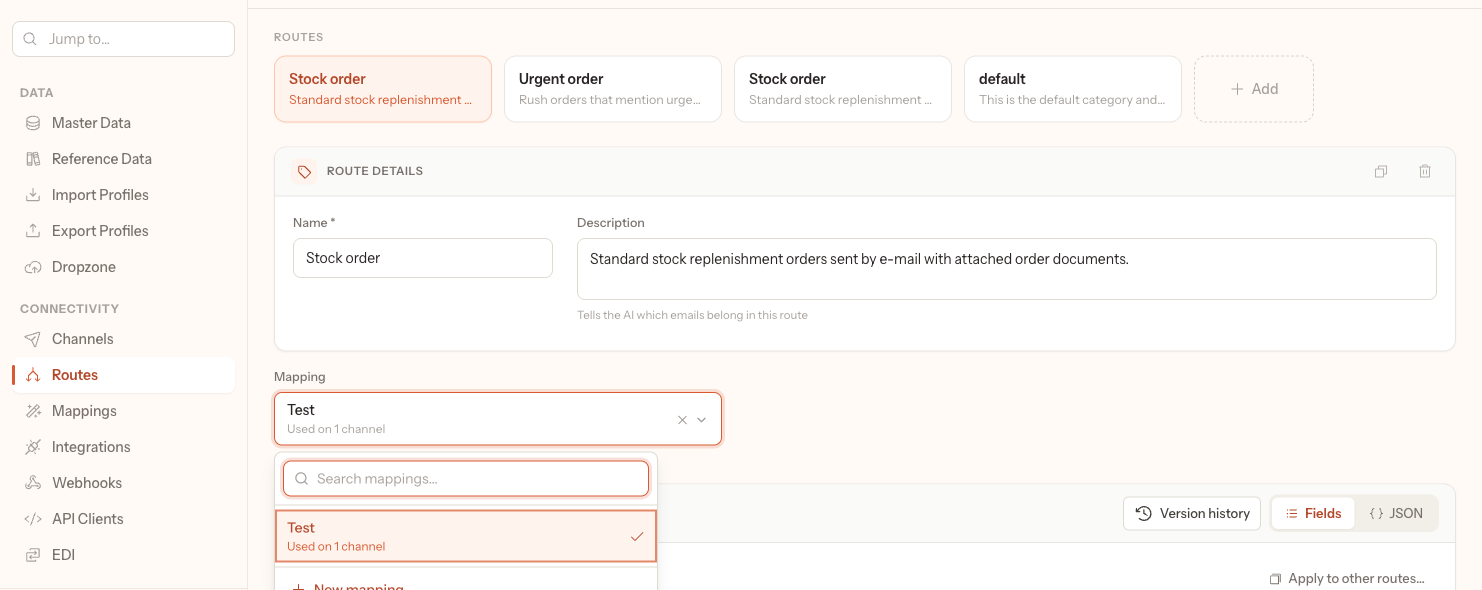
In the new layout, each route has a Mapping picker that holds the AI mapping the route uses. Why: a new route no longer needs a new AI mapping built from nothing, and you can move a route to another mapping without rebuilding it. How it works: search for an existing mapping and choose it, or type a name and choose New mapping. The mapping opens below the picker to edit, and when other channels use the same mapping a warning says how many, because your changes apply to all of them; see How the AI reads an order › Choose a route.
New
- Delete a file from the Dropzone with Delete on its row. After you confirm Delete file?, the file is removed for good; see Dropzone.
- The template of a list can show a value from a related record: type the name of the relationship, a dot and the field, for example
{{brand.name}}next to{{code}}, and every picker of that list shows the brand's name. The help text under the template field gives the syntax; see Change a reference data list › Change what a picker shows. - In the new layout, tab to a picker on the validation screen and start typing: the list opens with your first character in the search box.
BackspaceorDeleteempties a filled picker, and⇧ Enteropens the whole line for editing; see Keyboard shortcuts › Editing a cell. - The AI reads order attachments in
.rtfformat; see Which e-mails and attachments Hyperfox picks up › Which attachments the AI reads.
Changed
- The AI reads the numbers in an
.xlsxattachment as Excel shows them: a cell that holds 10.08 but shows 10 is read as 10; see Which e-mails and attachments Hyperfox picks up › Which attachments the AI reads.
Fixed
- In the new layout, the Add action, followed by the name of the list, is back above a picker field, such as a delivery address, and the record you create with it fills the field instead of leaving it empty; see Add a missing customer, address or item while validating › Create the record.
- When the AI read a unit on a line but found no item, the line keeps that unit instead of showing an empty Select; see Fix order lines: item, quantity and unit › Change the quantity and the unit.
- Codex entries scoped to a customer are also found in environments where the customer field of the order points to another list, and two entries that cancel each other out also do so when the AI matches by text; see How Codex learns from your corrections › How the AI uses entries.