Release of 19 August 2026
From this release every user works in the new layout. A record the AI could not find in your reference data can be created from what it read, the dashboard offers guided tours, and Hyperfox marks mail from Microsoft 365 with an Outlook category once its inquiry is completed or needs attention.
Highlights
Add a missing record, filled in from the AI
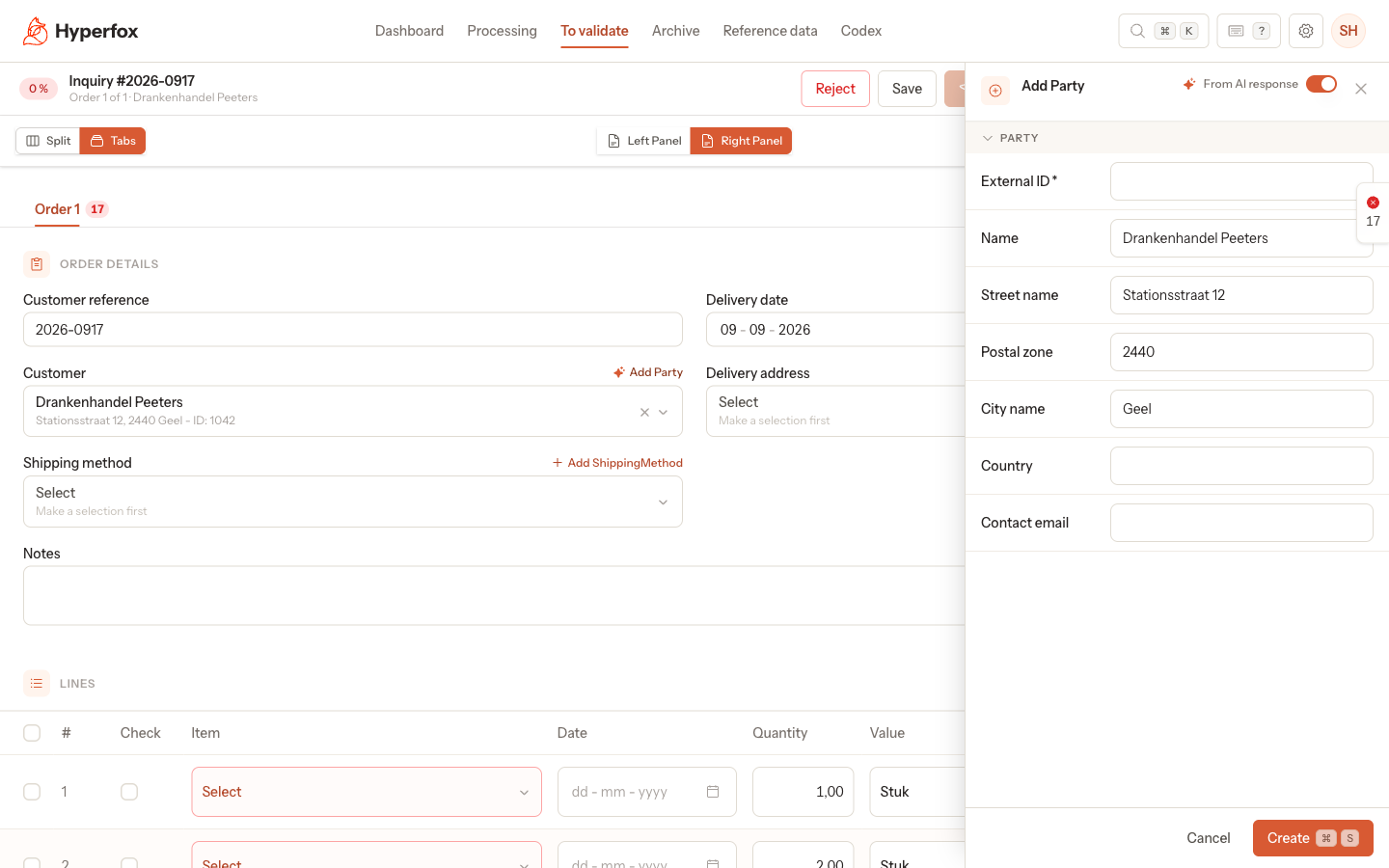
When the AI reads a customer, an address or another record on a document but cannot match it to your reference data, the Add panel opens with the fields already filled in with what the AI read. Why: you no longer retype a new delivery address or customer from the PDF. How it works: From AI response switches the AI's values off and on again, values you typed yourself are never overwritten, and a field the AI could not fill shows what the document said under it; see Add a missing customer, address or item while validating › Create the record.
New
- The Dashboard has a Getting started section with four short tours that show on your own screen where to click; see Tours.
- A CSV attachment opens as a table instead of showing no preview, and an RTF attachment, which the source pane did not list before, now shows as a chip and opens as a document; see The validation screen › Source pane.
- Hyperfox puts a coloured Outlook category on a mail in a watched Microsoft 365 mailbox once its inquiry is completed or needs attention, so you see in Outlook what happened to it, and your admin can give the categories your own names under Label names; see Connect Microsoft 365 and choose mailboxes › Choose the label names.
- An admin can delete a channel straight from the channels list with Delete; the Microsoft 365 channel keeps Disconnect instead; see Channels › Channels list.
- A form field can be a tableselect: a searchable picker in which you choose several records at once; see Master Data › Form fields tab.
Changed
- The new layout is the only layout: the switch between the old and the new layout is gone and every user works in the new one; see Where things are.
- To watch a Microsoft 365 mailbox, you type its address under Watched mailboxes instead of picking it from a list of every mailbox in your organisation, and an address that does not exist is refused before anything is saved; see Connect Microsoft 365 and choose mailboxes › Add the mailboxes to watch.
- The Add panel no longer blocks the screen behind it, so you can select and copy text from the PDF while you fill it in; see Add a missing customer, address or item while validating › Create the record.
- A required field that is empty shows a short sentence, such as "Customer reference is required", under the field and in the errors pane; see The validation screen › Errors pane.
- A picker shows every line of a record's text again instead of cutting it off, and opening it shows your current choice at the top of the list; see Add a missing customer, address or item while validating › Search the list.
- On an inquiry with many orders, the order tabs scroll sideways instead of breaking onto a second line; see The validation screen › Order tabs.
- The issue date column on To validate and Archive can be sorted; see Order lists and the dashboard › Filters, sorting and page size.
- A placeholder in the file name of an export profile can take a value from a record linked to the order, with a dot between the names; see Export Profiles › Profile fields.
Fixed
- PDFs in the source pane are sharp on every screen, also on external monitors and when you zoom in; see The validation screen › Source pane.
- A list no longer stays empty when the sorting or filters remembered in your browser are damaged, or when one of its columns points to a field that no longer exists; see Order lists and the dashboard › Filters, sorting and page size.
- A page that failed to load part of the app no longer sends you back and forth between the sign-in page and your identity provider; see Microsoft shows an error instead of returning you to Hyperfox.