Release of 9 September 2026
The PDF shows where the AI found each order line, for every user. Admins can send orders to Business Central with the Custom BC export provider, and a new webhook shows its secret key right after it is created.
Highlights
AI highlights in the PDF
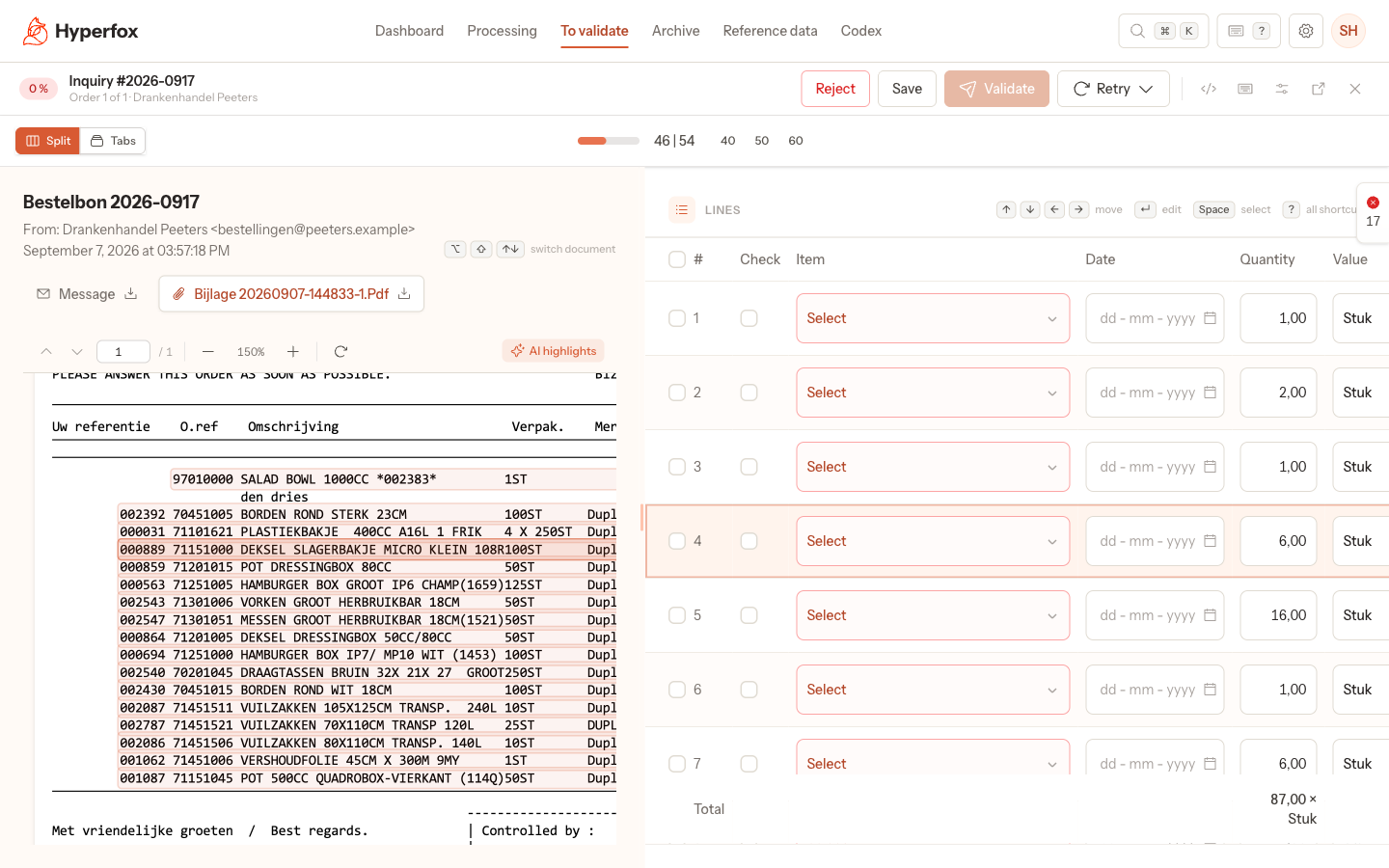
The PDF next to an order highlights the rows the AI read the order lines from. Why: you no longer search the document for the row that belongs to a line you are checking. How it works: point to an order line and the matching row in the PDF lights up and scrolls into view, point to a row in the PDF and the order scrolls to its line, and AI highlights in the PDF toolbar switches it off and remembers your choice; see The validation screen › Source pane.
New
- An admin can choose Custom BC as the provider of an export profile, to send orders to a Business Central codeunit; see What Hyperfox exchanges with Business Central › Custom BC export profile.
- A column on To validate and Archive can show a field of a linked user, such as the name of who validated the order; such a column can be sorted but not filtered; see Change the columns and fields of the order screens › Add a column to To validate and Archive.
Changed
- When you create a webhook, Hyperfox confirms it and shows its Secret Key with a copy button; see Set up a webhook › Copy the secret key.
Fixed
- Date fields always show day-month-year, such as 31-12-2026, whatever the language of your browser or computer; see The validation screen › Order details.
- The Add panel and forms with several records show their errors again when a field is wrong, instead of not saving without a message; see Add a missing customer, address or item while validating › Create the record.