Release of 23 September 2026
This release shows the warnings and info the AI leaves on an order, lets you duplicate lines, and gives admins an enforced picker filter and an Odoo connector.
Highlights
AI warnings and info on your orders
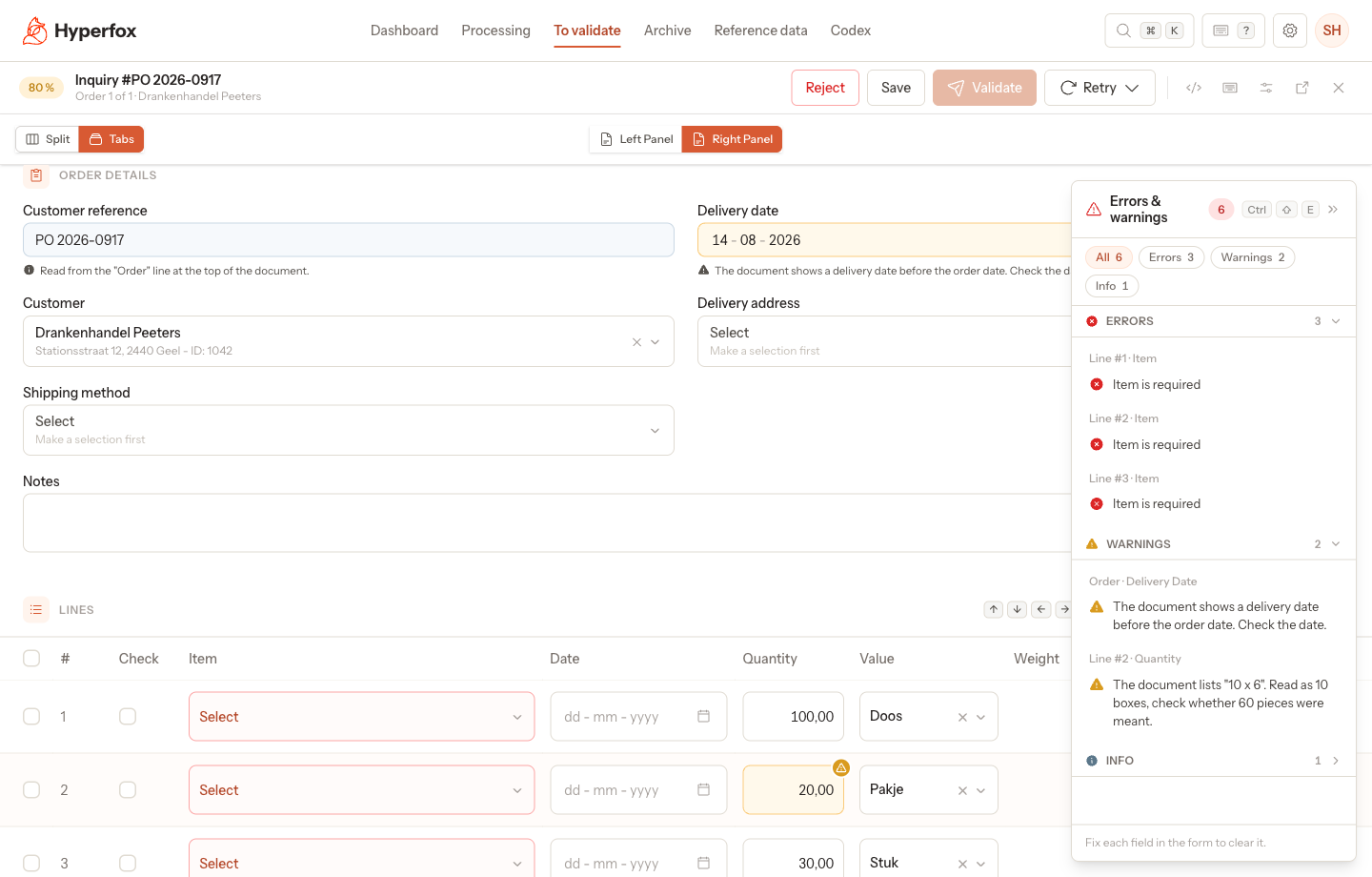
When the AI flags a value on an order or a line, for example a delivery date in the past, the field gets an amber tint for a warning or a blue tint for info, with the message under it, and the Errors & warnings pane lists every message. Why: a value the AI doubts no longer looks the same as a value it is sure of, so you know where to look before you validate. How it works: warnings and info never block Validate and stay after you edit the field, while an error on the same field still wins; see The validation screen › Errors pane.
New
- Your admin writes the warnings in the AI mapping: in the Fields view, under Warnings next to the extraction instruction of a field, and under Order for warnings about the whole order. Each warning has a condition the AI checks and the message you see; see Mappings.
- Select lines and click Duplicate (
D) to add a copy of each selected line in the same order. The selection stays, so you can duplicate the same lines again; see Fix order lines: item, quantity and unit › Change several lines at once. - Your admin can switch on Enforce filter on a picker, so the list stays limited to the records that belong to the field it filters on and you cannot switch the filter off. Warn on multiple options adds a warning while more than one record fits, also on the columns of the lines; see Change the columns and fields of the order screens › Switch a picker filter on, off or to enforced.
- An export profile can send orders to Odoo: choose Odoo in Provider, with an API connection; see Set up an export profile › Create the profile.
Changed
- The reject confirmation asks the same question in To validate and on the validation screen. On a split inquiry it says that it rejects all orders of the inquiry, and it no longer names the value of the first column of the row; see Reject an order › Reject from the list.
- Admin settings is hidden for users who cannot open any admin page; see The Admin settings menu.
Fixed
⌘ S(Ctrl Son Windows) saves also while a dropdown is still open, in side panels, wizards, the validation screen and the channel, route and mapping pages; see Keyboard shortcuts › Panels and dialogs.- Choosing New mapping on a route without a mapping shows that a new mapping is pending, instead of seeming to do nothing; see How the AI reads an order › Choose a route.
- A converted quantity no longer shows under the wrong line for a moment after you delete or reorder lines, or switch orders; see Fix order lines: item, quantity and unit › Change the quantity and the unit.
- The Codex list no longer scrolls into an empty white area after you choose 25 or 50 rows per page; see Review, switch off or delete what Codex learned › Find an entry.
- Import and export profiles offer only the transformers and providers available in your environment, and an import profile that uses a transformer made for your environment opens again instead of showing a blank page; see Import Profiles.
Documentation updated in this release
- What each part of the validation screen shows
- Fix order lines: item, quantity and unit
- Change the columns and fields of the order screens
- Set up an export profile
- Reject an order